

Adding another MetaTrader terminal doesn’t always require a bigger VPS, but it does require an organised setup. Running multiple metatrader instances on one vps can keep accounts and strategies separate when each terminal has its own installation and enough resources for its workload.
Several terminals, charts, and Expert Advisors can compete for CPU and memory or make configurations harder to track. Rather than rely on a universal terminal limit, give each setup a distinct location and size the VPS for the software and activity you actually run.
This guide explains how to install separate terminals, organise account and EA configurations, and estimate VPS capacity for MT4, MT5, or both. You’ll also learn how to deploy terminals consistently and monitor resource use as your setup changes.
Key Takeaways
- Running multiple metatrader instances on one vps works best when each terminal has a distinct installation path and a clearly assigned account or strategy.
- Estimate capacity from the combined workload, including charts, indicators, EA activity, CPU, memory, and storage, rather than relying on a fixed terminal count.
- Use a consistent installation sequence and verify that each terminal launches with the intended configuration.
- Track terminal status, connectivity, and VPS resource use to spot performance issues early.
- Use a repeatable restart and recovery checklist, then identify whether a slowdown affects one terminal or the whole VPS.
Why run multiple MetaTrader instances on one VPS?
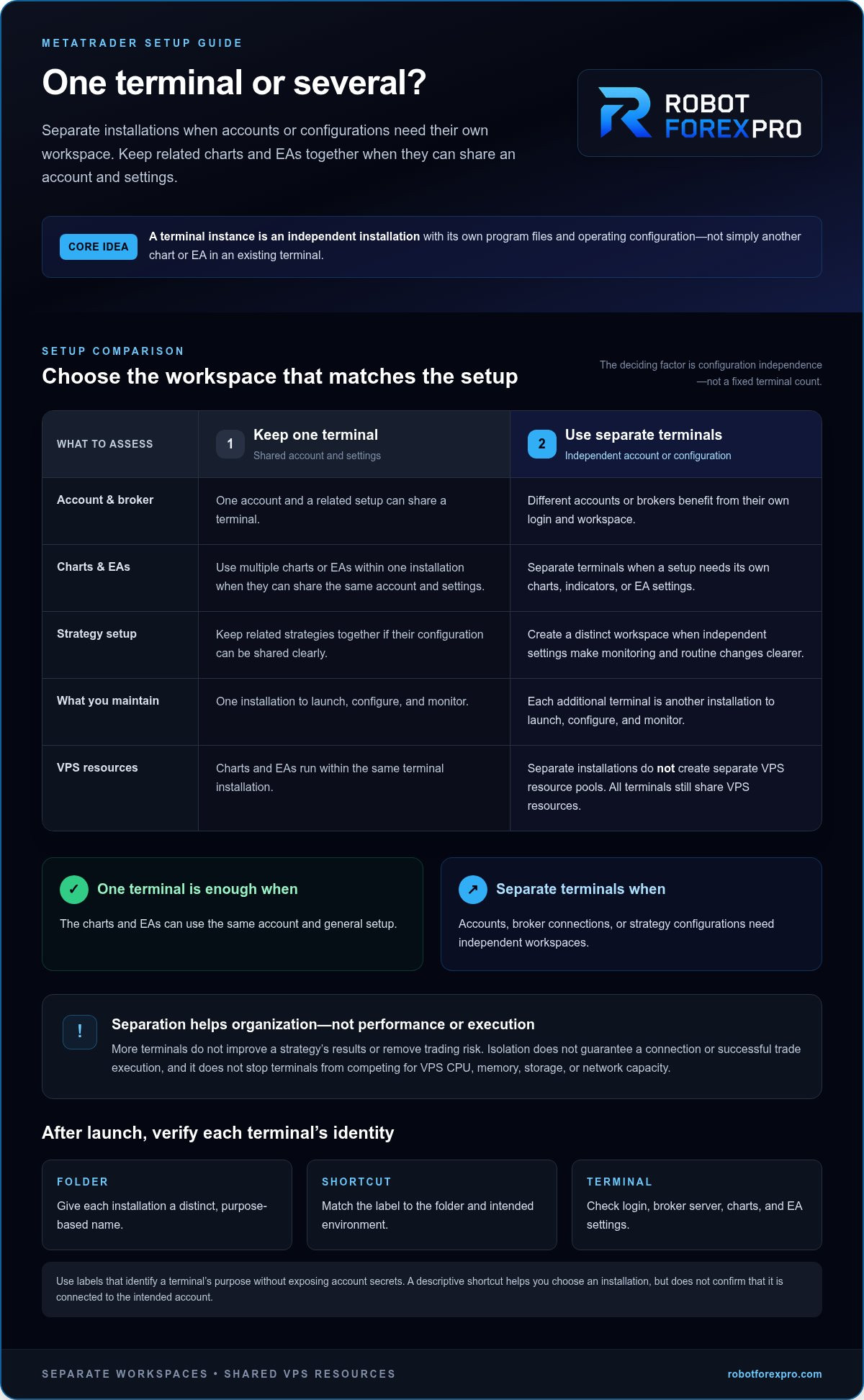
Running multiple MetaTrader instances on one VPS lets you manage distinct accounts, brokers, or strategy configurations from one remote machine. Each setup has a defined place and its own settings. Adding terminals doesn’t improve a strategy’s results or remove trading risk, but it can make separate workflows easier to manage.
An MT4 or MT5 instance is an independent terminal installation with its own program files and operating configuration. It is different from opening another chart or attaching another EA inside an existing terminal. One terminal can host multiple charts and EAs, but they remain within the same installation and account session. For background on MT4’s role in retail trading, see the MetaTrader 4 (MT4) platform.
When does a separate MetaTrader terminal make sense?
Use a separate terminal when a setup needs a distinct account, broker connection, or configuration. For example, you could keep one terminal for a live account and another for a demo environment. Separate windows and installation paths make it easier to identify the setup you’re operating and reduce the chance of changing the wrong one.
Separate terminals can also help when strategies need different charts, indicators, or EA settings. A multi-pair approach, for example, can have its own configuration apart from a setup focused on another instrument or strategy. Each terminal still needs its own login, configuration, and checks. Isolation helps organise your work, but it doesn’t guarantee a connection or successful trade execution.
One terminal or several: what should you separate?
Start with the account and configuration requirements. If you use one account and the same general setup, several charts or EAs in one terminal may be enough. Another terminal adds an installation to maintain, so create one only when it serves a clear purpose.
Choose separate terminals when setups need independent account sessions or when configuration differences make a shared workspace harder to manage:
- One account, related setup: Keep charts and EAs in one terminal if they can share the same account and settings.
- Different accounts or brokers: Use separate terminals so each environment has its own login and workspace.
- Distinct strategy configurations: Separate terminals when independent settings make monitoring and routine changes clearer.
More terminals also mean more software instances to launch, configure, and monitor. Treat each as a separate operating environment, not a performance upgrade. When running multiple metatrader instances on one vps, terminals organise accounts and strategies, while capacity and trading outcomes depend on other factors.
How MetaTrader instance isolation works on a VPS
Terminal isolation means keeping each MetaTrader installation’s files and operating settings distinct, where the platform supports it. Separate folders make installations easier to identify and manage, but they don’t create separate VPS machines, operating systems, or resource pools. Terminal separation isolates software configurations; VPS resource separation determines how much computing capacity each workload can use. All terminals on the VPS still share system resources. IBM’s overview of a Virtual Private Server (VPS) explains the virtualised server environment behind that distinction.
Separate folders, portable mode, and terminal data
A dedicated folder gives each installation a clear location for its program files and can simplify maintenance. It doesn’t guarantee that every file or setting is isolated. Terminal data storage can depend on the installation method and platform configuration, so confirm where the specific build stores its data before copying, backing up, or changing files.
Portable mode is another possible way to organise terminal data, but it isn’t a universal requirement. Controls and behaviour can vary by MT4 or MT5 build and operating system. Check the installed terminal’s menus and settings rather than assuming a guide for another version applies to your VPS.
Separate folders and portable mode help organise installations or data. Neither prevents terminals from competing for VPS CPU, memory, storage, or network capacity. Keep the distinction in mind when running multiple metatrader instances on one vps: organisation and server capacity are related, but they solve different problems.
Name and verify each terminal configuration
Use folder names and shortcuts that identify each terminal’s purpose without exposing account secrets. Labels such as “Demo Strategy A” or “Broker B Live” are clearer than generic names like “MT5-2.” Keep passwords, account numbers, and other sensitive credentials out of shortcut labels, filenames, and notes that may be visible to other users.
After launching a terminal, verify its identity before loading or changing a strategy. Check the account login, broker server, open charts, and EA configuration against your setup record. Confirm that each EA is attached to the intended chart and its parameters match that terminal’s purpose. A descriptive shortcut helps you open the right installation, but doesn’t confirm that it is connected to the right account.
- Folder: Use a distinct, purpose-based name for each installation.
- Shortcut: Match its label to the folder and intended environment.
- Terminal: Confirm login, server, charts, and EA settings after launch.
For a strategy configuration that needs its own workspace, RFP MultiPair EA is one of RobotForexPro’s automated trading software options. Keep the terminal’s purpose and configuration clearly documented.
How much VPS capacity do multiple MetaTrader instances need?
VPS capacity depends on measured combined workload, not terminal count alone. Two terminals with light chart and EA activity can use fewer resources than one heavily loaded terminal. Use estimates as planning context, then measure your own setup before deciding whether the VPS has enough headroom.
As rough context, a 4 GB VPS may suit 1 to 3 MT5 instances or 5 to 8 MT4 instances, but these figures aren’t guarantees. Six MT4 instances may call for 6 GB in a real-world scenario. More charts, heavier EAs, Windows overhead, or mixed MT4 and MT5 use can change the result. Don’t treat a headline terminal count as a capacity specification.
Measure the workload before adding terminals
Record CPU and memory use with the VPS idle, then with your current terminals open. Add the planned charts and EAs and compare the readings. Repeat during representative active periods because idle readings can understate demand. Look for sustained high use and limited headroom rather than a brief spike. Recheck after changing charts, indicators, or EA activity.
Choose one VPS or split workloads across servers
One VPS centralises administration and keeps environments together, but all terminals share its resources. Splitting workloads across VPS environments creates separate resource pools and can limit the impact of one busy group, while adding systems to manage, monitor, and maintain. Compare these trade-offs with your measured demand and the separation your workflow requires. Neither arrangement guarantees a particular latency or execution result.
How to install and launch multiple MetaTrader terminals
Use the same controlled sequence for each terminal: prepare the VPS, install each platform instance separately, then verify its account and trading configuration. Installer screens and menu wording can vary by broker, MT4 or MT5 build, and operating system. Follow the options displayed by your installer rather than assuming every version uses the same labels.
- Access the VPS. Sign in to the Windows environment and close unrelated applications. Confirm there’s enough storage for the installations and terminal data.
- Prepare a naming scheme. Decide how folders and shortcuts will identify each setup, such as by platform, broker, and purpose. Keep sensitive credentials out of names and notes.
- Prepare the installer. Use the MT4 or MT5 installer supplied for the intended broker or platform. Keep each installer identifiable so you can match it to the right setup.
- Install the first terminal. Run the installer and select a dedicated installation path if the installer provides that option. Use a distinct folder for every additional installation.
- Repeat for each terminal. Run the appropriate installer again for each required setup. Check the destination before proceeding so a new installation doesn’t unintentionally reuse the previous terminal’s folder.
- Create clear shortcuts. Label each shortcut by purpose and match it to its installation folder. Launch terminals individually during initial setup to avoid confusing one window with another.
- Verify the connection. In each terminal, confirm the account login and broker server. Check that the intended charts are open and the correct account is active before adding an EA.
Install each terminal with a distinct configuration
Give each setup a consistent identity, from folder to shortcut. For example, a folder and shortcut labelled “Broker A Demo” should open the installation intended for that demo environment. Select a distinct path wherever the installer supports it and verify the destination before completing each installation. Don’t assume similar-looking terminal windows belong to different installations.
Check EAs, permissions, and startup behaviour
Attach each EA only to its designated terminal and chart. Confirm its settings, then check the platform’s automated-trading permissions and status indicators. Controls can vary by build. Test each shortcut by closing and reopening its terminal. Configure startup on VPS login only after confirming that every shortcut opens the intended installation and restores the expected environment.
Keep a brief deployment record for each terminal: folder, shortcut, platform, account purpose, charts, and EA configuration. This gives you a reference when updating settings or restoring the setup. For a strategy requiring a dedicated configuration, RFP MultiPair EA is one option to consider in your terminal workflow.
Keep multiple MetaTrader instances organised and operational
Installation is only the starting point. Regular checks help confirm that each terminal is open, connected to its intended server, and using the expected charts and EA settings. Keep the routine consistent so you can spot changes early. Running multiple metatrader instances on one vps requires monitoring both each terminal and the shared server.
Use this checklist after logging in, restarting, or changing a configuration:
- Terminal status: Confirm every required terminal is running and displaying the intended account.
- Connectivity: Check each terminal’s connection status and confirm it’s communicating with the expected broker server.
- Resources: Review CPU, memory, and disk activity on the VPS alongside terminal responsiveness.
- Configuration: Verify the expected charts, EA assignments, and automated-trading settings.
- Recovery: Confirm terminals reopen with the intended settings after a restart, then check their status again.
Monitor resource pressure and diagnose slow terminals
Compare system activity with what you see on screen. If one terminal responds slowly while the others remain responsive, inspect that terminal’s charts and EA activity first. If all terminals lag and the VPS itself feels sluggish, check overall CPU, memory, and disk use. A slow chart may point to a local workload; broad delays may indicate shared resource pressure. Don’t diagnose from one reading alone.
Before increasing VPS capacity, reduce unnecessary charts and indicators, then see whether responsiveness changes. Make one adjustment at a time and record what changed. This helps identify whether the cause is a specific terminal configuration or the combined workload. If slowdowns persist across terminals after you remove avoidable activity, reassess measured demand against available VPS resources.
Prepare for restarts and configuration changes
Keep a concise record of each terminal’s folder, shortcut, account purpose, charts, and EA assignments. After a planned restart, verify that every required terminal has reopened with the correct login and broker server. Check the EA attachment and automated-trading status as well. Don’t assume a shortcut or startup setting restored the intended environment.
Test changes in a controlled sequence. After a platform update, EA change, or operating-system update, check one affected setup at a time. Verify that the terminal launches, the intended EA is attached to the correct chart, and its settings remain as expected. Your configuration record provides a reference point if something changes unexpectedly.
RobotForexPro offers proprietary EA software, including RFP MultiPair EA. Keep software selection distinct from VPS hosting and monitor each terminal according to its workload.
Build your next setup with deliberate control
Use your terminal map as a working design, not a one-time installation note. As accounts or strategy configurations change, review whether each environment still has a clear purpose and whether your operating routine still fits. Make adjustments deliberately, then verify the setup before relying on it. Running multiple metatrader instances on one vps is easier to manage when every terminal has an assigned role and every change has a clear check.
For the software side of that workflow, RobotForexPro offers proprietary Expert Advisors for independent traders. RFP MultiPair EA may suit readers organising distinct strategy configurations across terminals. Choose software that aligns with the setup you’re building.
Explore RobotForexPro's automated trading software to find an EA for your trading setup.
Frequently Asked Questions
Can you run multiple MetaTrader instances on one VPS?
Yes. You can run multiple MetaTrader terminals on one VPS when each is installed and configured appropriately. Running multiple metatrader instances on one vps can support separate account or strategy environments, but the practical limit depends on combined workload and available resources. Start with the terminals you need, then observe resource use while charts and EAs are active. Add capacity or split workloads if performance becomes constrained.
How many MetaTrader instances can one VPS run?
There’s no reliable universal instance count. Record resource use with your current terminals active, then add one terminal with its intended charts and EAs. Compare CPU, memory, and disk activity, and check whether existing terminals remain responsive. This incremental approach shows the impact of your actual configuration rather than relying on a count that may not fit your workload.
Do multiple MetaTrader instances need separate folders?
Separate installation folders are a common way to keep terminal installations distinct. Portable mode is another possible configuration, but its behaviour depends on the platform build and installation method. After setup, check each terminal’s installation location, account, broker server, and settings. Separate folders organise software files; they don’t create separate VPS resources or guarantee that terminals will remain connected.
Will running multiple MetaTrader instances increase latency?
Not automatically. Additional terminals can increase VPS workload, and system pressure may affect how quickly the platform responds. Network latency is also affected by the route to the broker and conditions at the broker’s server. To diagnose a delay, compare the VPS’s general responsiveness with the connection status shown in each terminal. A responsive desktop with a connection issue differs from a system-wide slowdown.
Can I run MT4 and MT5 on the same VPS?
Yes, a VPS can host both platform types if its operating system and resources support them. Keep their installations and shortcuts easy to distinguish, then verify each platform’s account and server after launch. Confirm that an EA is designed for the platform version where you plan to use it. An MT4 EA isn’t automatically interchangeable with an MT5 EA, so test configurations separately.
What happens to my MetaTrader instances after a VPS restart?
A restart can close active terminal sessions, so don’t assume every instance will restore itself correctly. Test the startup routine with a planned restart, then confirm each required terminal opens with the intended account and broker server. Check the EA attachment and automated-trading status as well. These checks verify software recovery, but they can’t remove market, broker, or network risks.